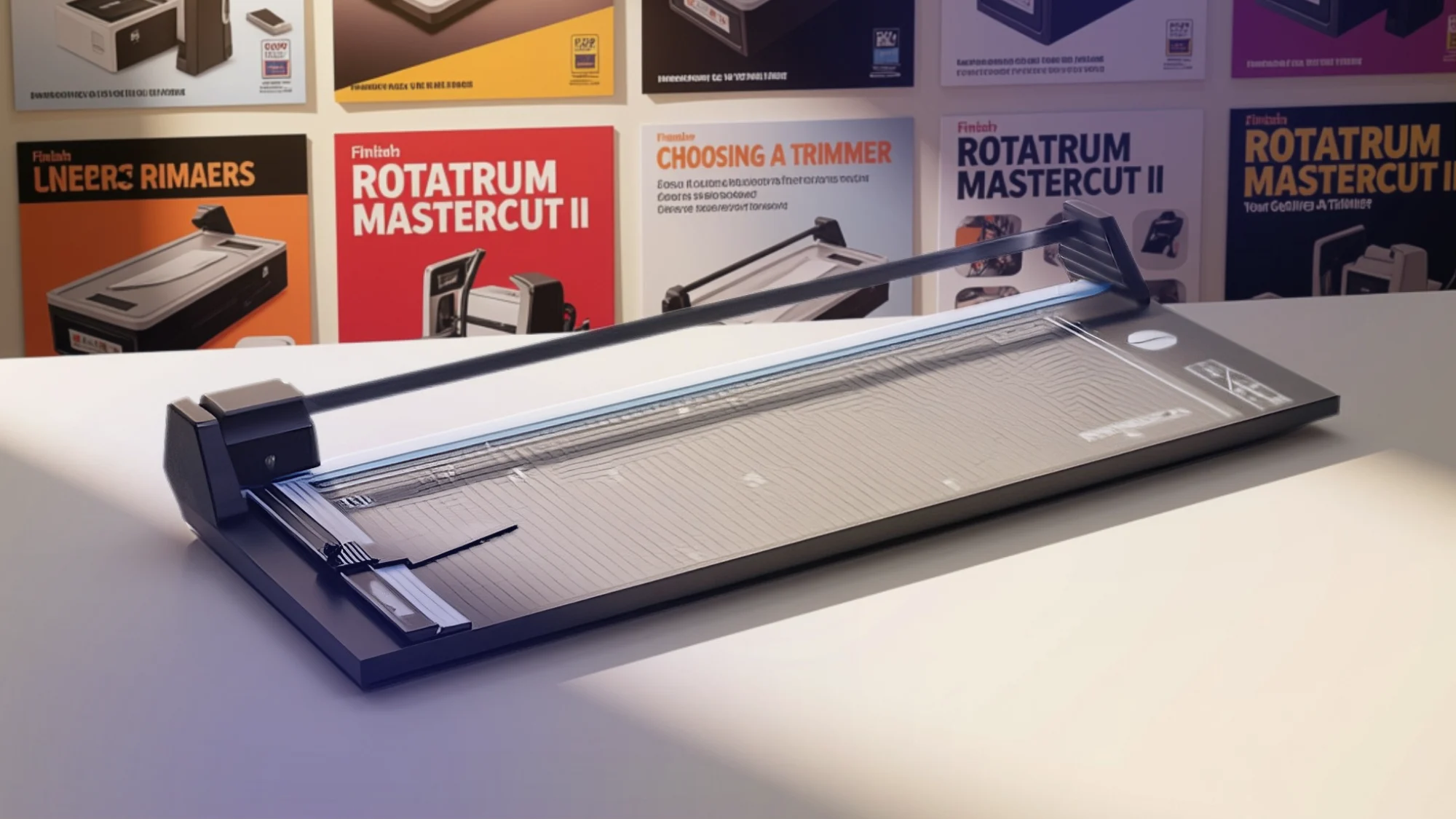
A finished October poster can lose its impact when its edges are uneven or its borders are cropped. If you’re considering a Rotatrim Mastercut II for classroom displays, exhibition prints, or office signage, begin with your largest sheet and the material you need to cut. USI-Laminate, based in Madison, Connecticut, supplies laminating and print-finishing products. This guide explains what to check before relying on a particular trimmer for your seasonal projects.
Start With Your Finished Display Size
Measure the longest edge you intend to trim, including any margin you need to remove. A 24-inch poster may require more cutting length if it has bleed or oversized borders. Check the trimmer’s stated cutting length rather than its overall baseboard dimensions.
The original Mastercut II appeared in multiple sizes, including a 36-inch version; 36 inches was not the universal limit. Rotatrim’s more recent MasterCut MC Series uses different model names and specifications. Confirm the exact product label before comparing capacities or ordering replacement parts.
Check the Material, Not Just the Blade
A rotary trimmer can be useful for paper prints, photographs, lightweight card, and some laminated sheets. But cutting capacity varies by model, and thickness limits matter as much as length.
Before selecting equipment, note:
- Substrate: Paper, card, photo stock, or laminated print.
- Total thickness: Include both the printed sheet and any laminate layers.
- Volume: Decide whether you need occasional precision cuts or repetitive production trimming.
- Finish: Determine whether a narrow white border or a flush edge is intended.
Avoid promising that every trimmer will handle heavy mat board or stacks of sheets. Ask for the model’s supported materials and maximum thickness.
What Makes a Rotary Trimmer Practical?
Rotatrim’s MasterCut models have been associated with self-sharpening cutting wheels, guides for alignment, and clamp strips that help hold material steady. Those features can support consistent results, but they do not eliminate the need to measure and test.
Self-sharpening also does not mean a cutting wheel lasts forever. Rotatrim notes that wear depends on the material and frequency of use. When a cut becomes ragged, check the manufacturer’s maintenance guidance before attempting repairs.
Trim Your October Prints in Five Steps
For a batch of Halloween posters, classroom labels, or event displays, use a repeatable workflow:
- Measure the artwork. Mark the intended finished dimensions and account for bleed.
- Inspect the trimmer. Check the baseboard, guide rail, cutting head, and clamp for damage.
- Position the sheet. Align the cut line with the measurement guide and secure the material under the clamp.
- Make a controlled cut. Move the cutting head as directed for that exact model; cutting direction may differ.
- Check the result. Inspect the edge and measure one finished piece before trimming the whole batch.
Keep fingers clear of the cutting path and never exceed the published capacity.
Frequently Asked Questions
Can the Mastercut II cut laminated posters?
Certain models can trim compatible laminated materials. Check total thickness and test a sample first.
Does every version cut 36 inches?
No. Mastercut II listings show several cutting lengths, while newer MasterCut models follow another size range.
Do self-sharpening blades need replacement?
Eventually, they may. Follow manufacturer recommendations for cleaning, maintenance, and replacement components.
Is it suitable for bulk cutting?
Rotary trimmers are generally intended for precise finishing. Compare stated capacity and workflow needs before using one for stacks.
Finish Your Displays With a Better Fit
Whether you’re trimming October posters or laminated classroom signs, match the Rotatrim Mastercut II name and model specifications to the job rather than relying on a general description. Contact USI-Laminate to ask about currently available trimmers, compatible materials, and product support before purchasing.